Pwnagotchi Learnings 2023

The Pwnagotchi by EvilSocket was first developed in 2019. The official documentation is pretty good for learning about what it does and getting started. This article is to track some of the learnings from the process of building my own.
Hardware
I went with the Raspberry Pi Zero W (with pre-soldered header) and 2.13 inch Waveshare V3 E-ink HAT version. A screen isn't required since you can access it through the web UI at https://10.0.0.2:8080.
Configuration
This is the configuration I used which allows for Bluetooth access to the Web UI (requires hotspot enabled) through an iPhone. Update the configuration with your credentials for accessing the web UI. I also added my home Wifi to the main.whitelist array as well as the main.plugins.grid.exclude array.
main.name = "pwnagotchi"
main.lang = "en"
main.whitelist = [
]
main.plugins.grid.enabled = true
main.plugins.grid.report = true
main.plugins.grid.exclude = [
]


ui.web.enabled = true
ui.web.username = "<your_username>"
ui.web.password = "<your_password>"
ui.web.address = "0.0.0.0"
ui.web.origin = ""
ui.web.port = 8080
ui.web.on_frame = ""

ui.display.enabled = true
ui.display.type = "waveshare_2"
ui.display.color = "black"
ui.display.rotation = 180

main.plugins.bt-tether.enabled = true

main.plugins.bt-tether.devices.ios-phone.enabled = true
main.plugins.bt-tether.devices.ios-phone.search_order = 1
main.plugins.bt-tether.devices.ios-phone.mac = "44:90:BB:50:CE:7B"
main.plugins.bt-tether.devices.ios-phone.ip = "172.20.10.6"
main.plugins.bt-tether.devices.ios-phone.netmask = 24
main.plugins.bt-tether.devices.ios-phone.interval = 1
main.plugins.bt-tether.devices.ios-phone.scantime = 10
main.plugins.bt-tether.devices.ios-phone.max_tries = 10
main.plugins.bt-tether.devices.ios-phone.share_internet = true
main.plugins.bt-tether.devices.ios-phone.priority = 1

main.plugins.bt-tether.devices.android-phone.enabled = false
main.plugins.bt-tether.devices.android-phone.search_order = 1
main.plugins.bt-tether.devices.android-phone.mac = ""
main.plugins.bt-tether.devices.android-phone.ip = "192.168.44.44"
main.plugins.bt-tether.devices.android-phone.netmask = 24
main.plugins.bt-tether.devices.android-phone.interval = 1
main.plugins.bt-tether.devices.android-phone.scantime = 10
main.plugins.bt-tether.devices.android-phone.max_tries = 10
main.plugins.bt-tether.devices.android-phone.share_internet = false
main.plugins.bt-tether.devices.android-phone.priority = 1

main.plugins.memtemp.enabled = true
main.plugins.memtemp.scale = "fahrenheit "
main.plugins.memtemp.orientation = "horizontal"

# Buffer SD Card writes
fs.memory.enabled = true
fs.memory.mounts.log.enabled = true
fs.memory.mounts.log.sync = 60
fs.memory.mounts.log.zram = true
fs.memory.mounts.log.rsync = true
fs.memory.mounts.log.mount = "/var/log"
fs.memory.mounts.log.size = "50M"

fs.memory.mounts.data.enabled = true
fs.memory.mounts.data.mount = "/var/tmp/pwnagotchi"
fs.memory.mounts.data.size = "10M"
fs.memory.mounts.data.sync = 3600
fs.memory.mounts.data.zram = false
fs.memory.mounts.data.rsync = true

fs.memory.mount.log.size = "50M"
For Waveshare v3 users, you would use ui.display.type = "waveshare_3", but you will need a compatible image such as https://github.com/wpa-2/pwnagotchi or https://github.com/DrSchottky/pwnagotchi (possibly less stable).
Connecting
Windows 10/11
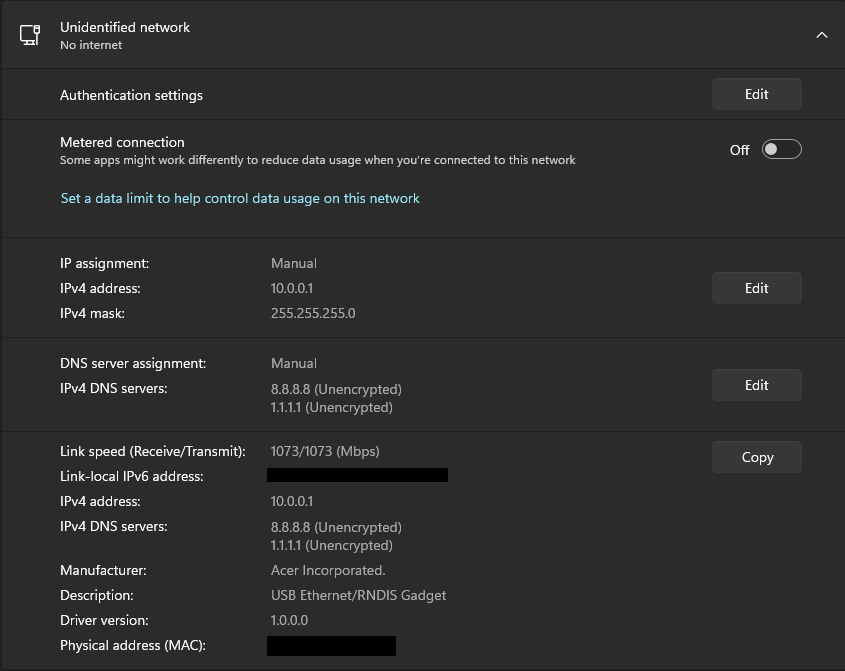
On Windows 11, I wasn't able get the USB connection to the Pwnagotchi detected. I had to search around for a Remote Network Driver Interface Specification (RNDIS) driver. This github repository contains a working driver.
Follow the directions listed in the official documentation for the actual configuration. Start Menu -> Network & Internet -> Ethernet:
Mac OS
This is relatively straightforward with no driver install needed. The Pwnagotchi should show up under Network as RNDIS(Ethernet Gadget). It may take a few minutes after plugging it in.
The default password is raspberry for the pi user. You should now be able to ping and ssh into the Pwnagotchi:
ssh pi@10.0.0.2
Once logged in, you should update the password for root:
sudo passwrd root
You can promote to root with sudo -s or if you want to login as root directly, but would need to update /etc/ssh/sshd_config by replacing PermitRootLogin prohibit-password with PermitRootLogin yes. This is helpful for backup and restore, but not recommended for anything you want secured.
sed -i 's/#PermitRootLogin prohibit-password/PermitRootLogin yes/g' /etc/ssh/sshd_config
sudo service ssh restart
ssh root@10.0.0.2
Use scp to copy files down. It's possible to setup public/private key pair to not have to use the password:
scp root@10.0.0.2:/root/handshakes <your_local_handshakes_path>
Backup and Restore
See https://pwnagotchi.ai/usage/#backup-your-pwnagotchi. Those scripts are located at /usr/local/src/pwnagotchi/scripts/ on the device itself.
The Pwnagotchi configuration and identifying keys created during the first boot are located at /etc/pwnagotchi. The handshakes are under /root/handshakes. If you do reflash the image, you probably want to get rid of the ssh keys associated with 10.0.0.2. For Windows, it would be under C:\Users\your_username\.ssh\known_hosts
I wrote some scripts to backup and restore the configuration and handshakes.
Update 06-17-2023:
I also wrote this script to convert the hexidecimal SSID/ESSID/BSSID to ascii from a specified .potfile
Happy Pwning


